💻 Setting Up Turner Digital Mail in Outlook (Windows or Mac)
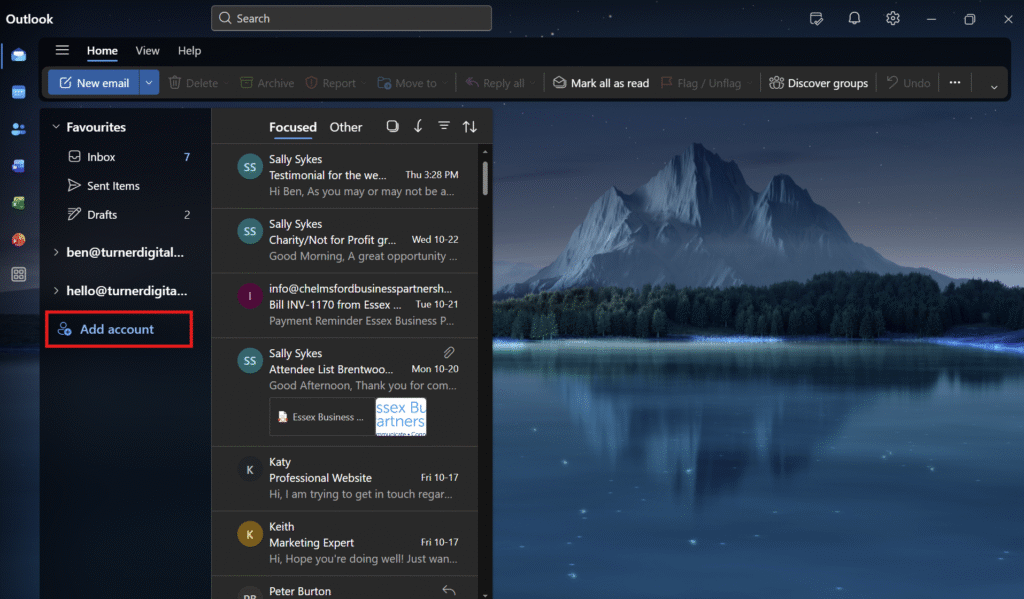
⚙️ Automatic Setup in Outlook (Recommended)
Turner Digital Hosting supports Microsoft’s autodiscover technology, which means Outlook can usually configure your account automatically using just your email address and password.
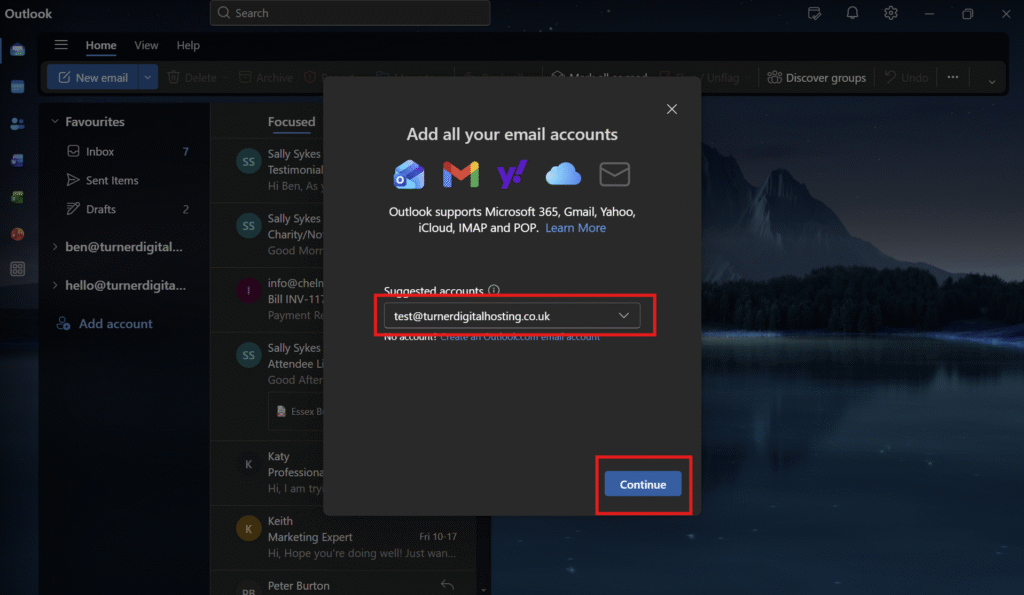
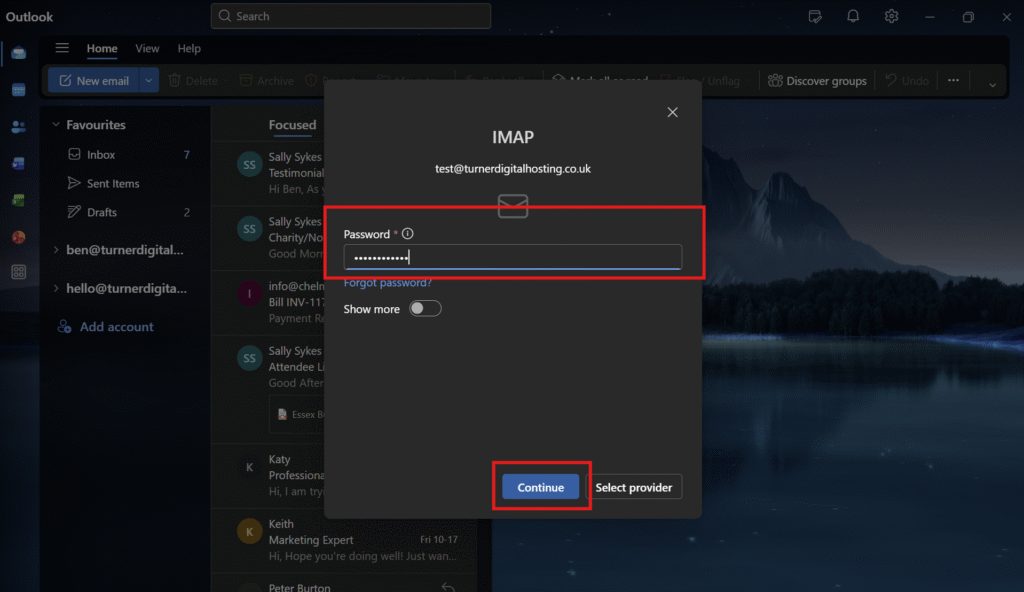
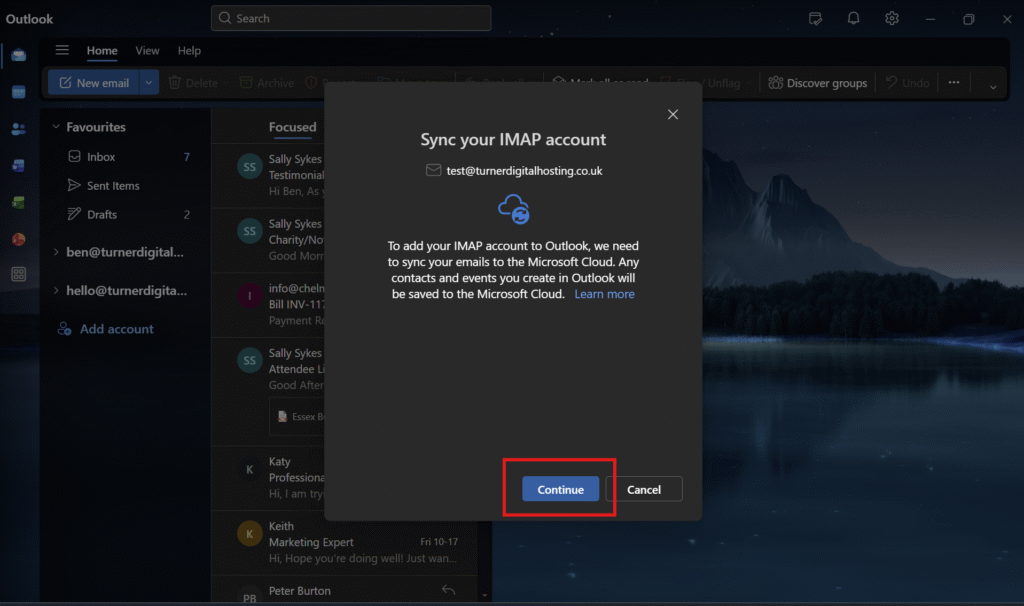
🆕 New Outlook
Open Outlook.
Click the ⚙️ Settings (Cog Icon) in the top-right corner.
Select Add Account.
Enter your email address (e.g. support@turnerdigitalhosting.co.uk).
When prompted, choose IMAP.
Enter your password, then click Continue.
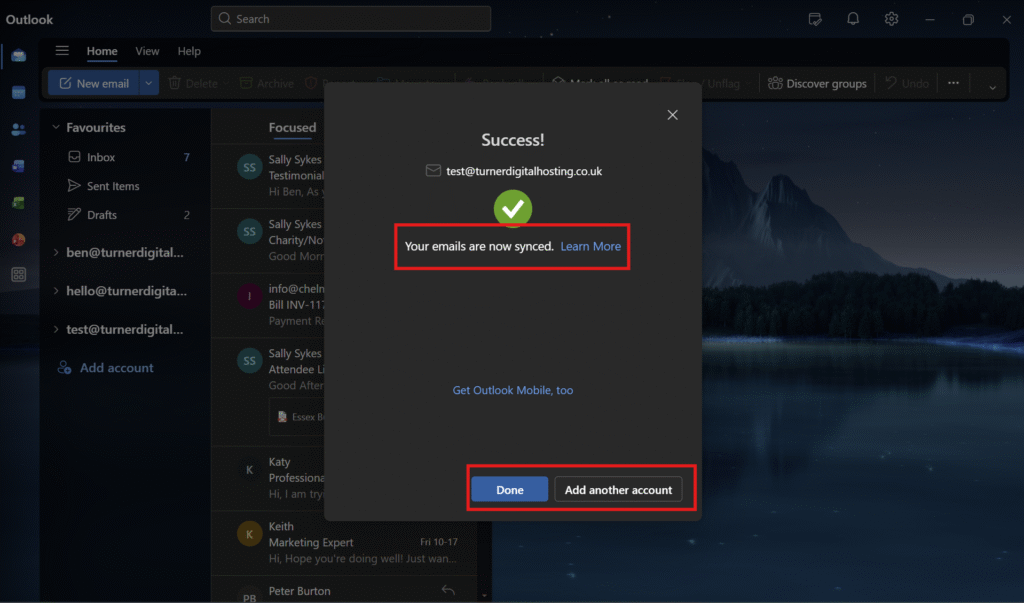
Wait for Outlook to sync your emails, then click Done.
💼 Classic Outlook
Open Outlook, then select the File tab.
Under Account Information, click Add Account.
On the Auto Account Setup page, enter your Name, Email Address, and Password.
Click Next, then Finish when complete.
Outlook will attempt to connect automatically using autodiscover.
🛠️ Manual Setup (if Automatic Setup Fails)
If autodiscover does not complete successfully, follow the steps below to enter your settings manually.
Manual Setup in New Outlook
Click the ⚙️ Cog Icon, then Add Account.
Select IMAP (Advanced).
Enter your email address and password.
Choose Advanced Settings and enter the server details below.
Manual Setup in Classic Outlook
Go to File → Add Account.
Choose Manual setup or additional server types.
Select POP or IMAP, then click Next.
Enter the details below.
 Incoming Mail Server (IMAP)
Replace “TurnerDigitalHosting” with your website site URL for example imap.mywebsite.co.uk
| Field | Value |
|---|
| Server | imap.turnerdigitalhosting.co.uk |
| Port | 993 |
| Security Type | SSL/TLS |
| Username | Your full email address |
| Password | As provided |
 Outgoing Mail Server (SMTP)
Replace “TurnerDigitalHosting” with your website site URL for example smtp.mywebsite.co.uk
| Field | Value |
|---|
| Server | smtp.turnerdigitalhosting.co.uk |
| Port | 465 |
| Security Type | SSL/TLS |
| Username | Your full email address |
| Password | As provided |
Press Next and wait for this to Verify it can take upto 2 mins. Once all the boxes are ticked you are all set up and ready to Go