
 Account Information
When adding your email account, use your own details as supplied by Turner Digital but follow this format exactly:
| Setting | Information |
|---|---|
| Name | Your Name (as you’d like it displayed on sent emails) |
| Your full email address (e.g. support@turnerdigitalhosting.co.uk) | |
| Password | As provided by Turner Digital Hosting |
| Description | Turner Digital Email For Example |
 Incoming Mail Server (IMAP)
Replace “TurnerDigitalHosting” with your website site URL for example imap.mywebsite.co.uk
| Field | Value |
|---|---|
| Host Name | imap.turnerdigitalhosting.co.uk |
| Username | Your full email address (e.g. support@turnerdigitalhosting.co.uk) |
| Password | As provided |
| Port | 993 |
| Use SSL |  Yes Yes |
 Outgoing Mail Server (SMTP)
Replace “TurnerDigitalHosting” with your website site URL for example smtp.mywebsite.co.uk
| Field | Value |
|---|---|
| Host Name | smtp.turnerdigitalhosting.co.uk |
| Username | Your full email address |
| Password | As provided |
| Port | 465 |
| Use SSL | Yes |
| Authentication | Password |
Press Next and wait for this to Verify it can take upto 2 mins. Once all the boxes are ticked you are all set up and ready to Go
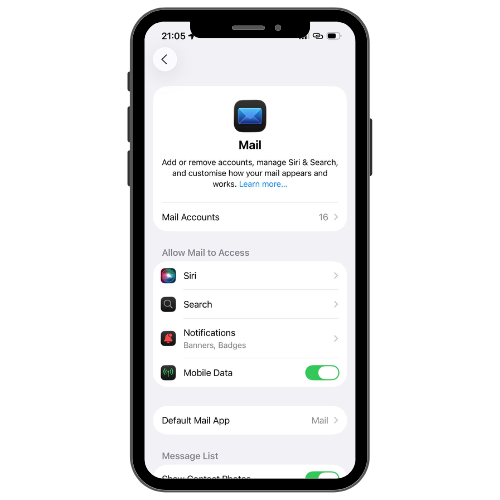
Settings > Mail > Mail Accounts
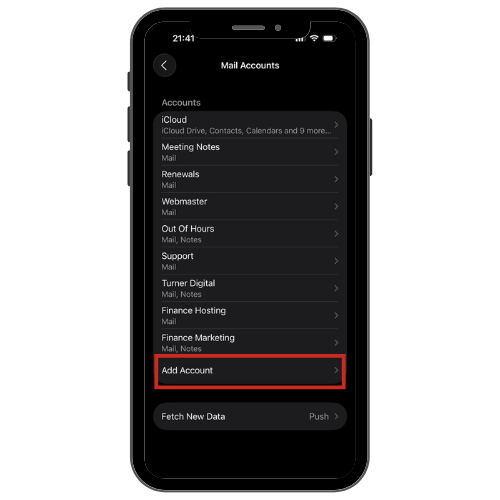
> Add Account
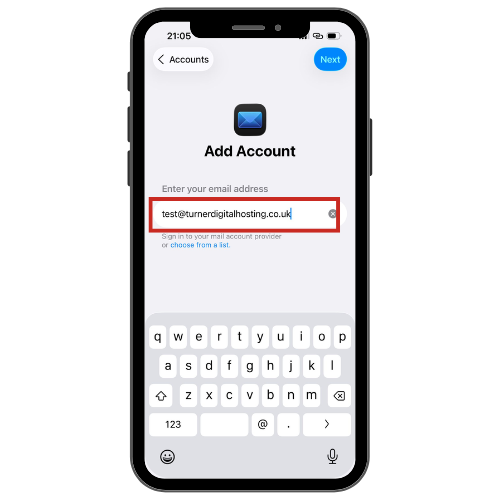
> Enter Email as Provided by Turner Digital
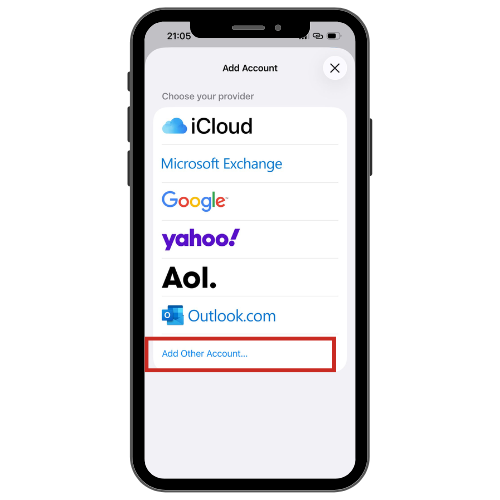
> Add Other Account
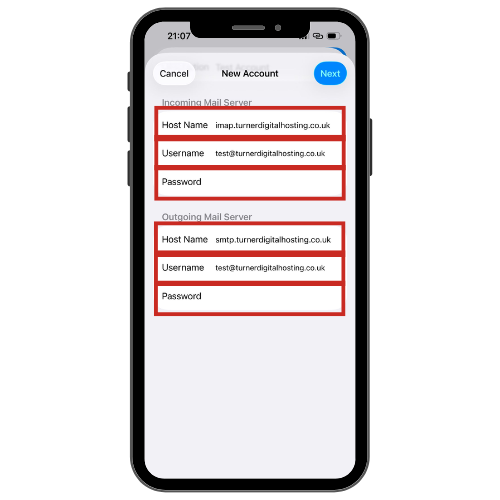
> Enter Details exactly as provided by Turner Digital, above is just as an example
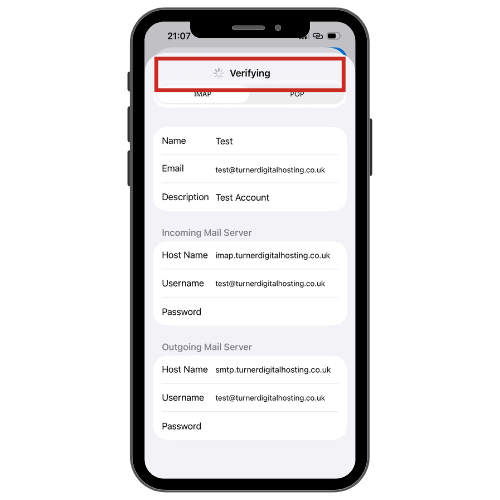
> Double Check Details > Click Next/Save (Top Right)
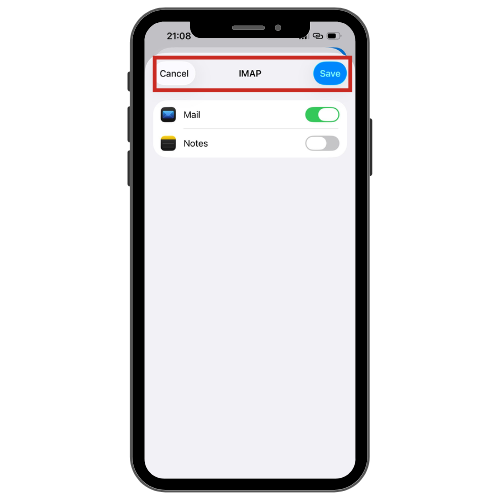
> Click Save and the Mail Box is Ready